
















Donate button, QR code, and more – with the new elements, you’ll attract more donors
These Are Our New Elements
Elements are helpful tools that you can connect to your donation form. You can integrate them anywhere to direct donors to the donation form and motivate them to donate – for example, with a donate button.
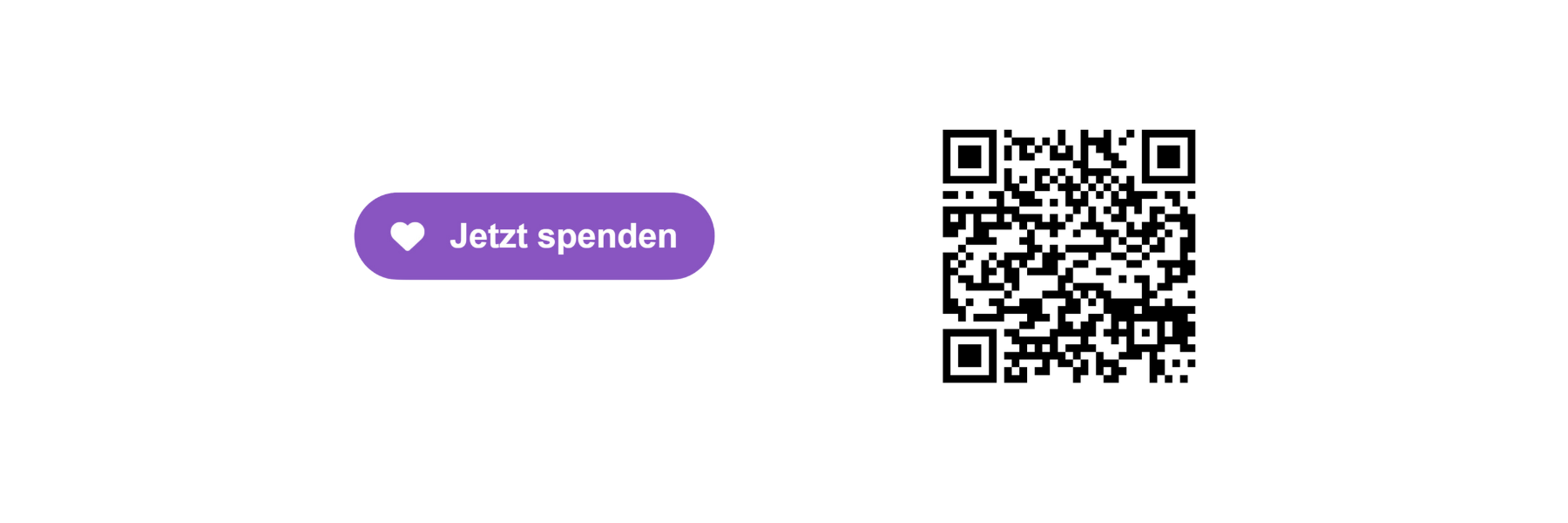
Donate Button: Place a customized button on your website or another site. With a single click, your donors are taken directly to your linked donation form.
QR Code: Create a QR code for your donors. They can scan the QR code online or offline to be directed to your donation form.
What the Elements Offer You
First and foremost, the Elements increase your donation volume by helping more users find your donation form. However, the features of each Element also bring additional benefits to your fundraising efforts.
#1 Increase Donation Volume: With the Elements, you’ll drive more people to your donation form. This increases conversion, as more donors find their way to donate.
#2 Connect Offline and Online Fundraising: With the QR code, you can guide donors from the street or your trade show booth to your website.
#3 Customize the Elements for Your Organization: Design your Elements to match your organization. With just a few clicks, you can customize the donate button and more so that they fit seamlessly into your corporate design.
#4 Edit Your Elements with Just a Few Clicks: Through the left sidebar, you can access a new section in the FundraisingBox where you can edit existing and created Elements with just a few clicks.
How to Create and Configure Your Elements
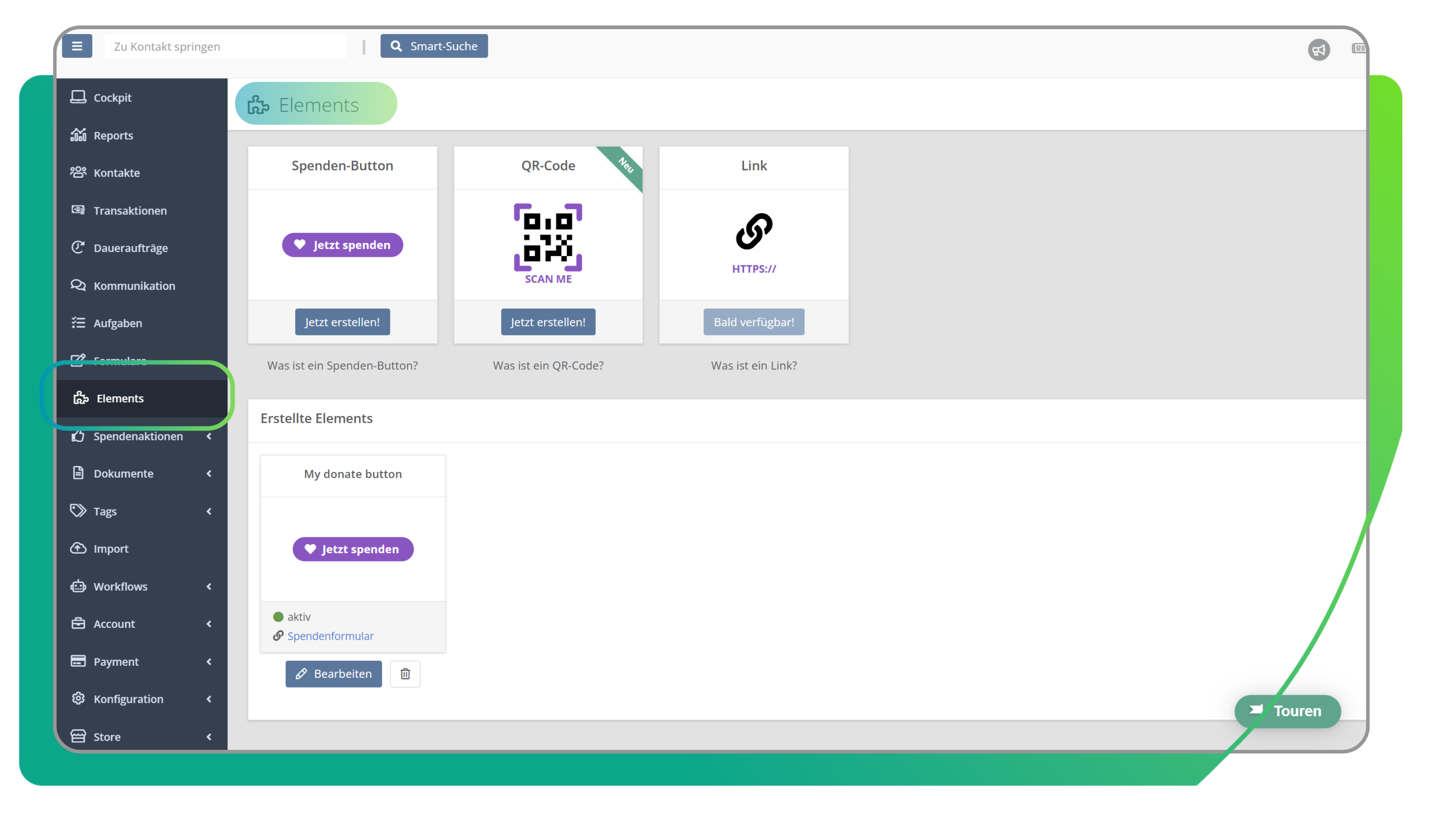
In the FundraisingBox, there is a new section for the Elements. Here, you can view and manage all available Elements. You can also see which Elements you’ve already created yourself and whether they are activated or not.
Donate Button Element
1. Settings
After clicking “Create,” you’ll be taken to the “Settings” tab for your donate button.
- Enter a name for your donate button. This name will not be visible to donors and is solely for your reference.
- Select the form that the donate button should link to.
- The target URL of the form is automatically entered. You can edit the target URL to link to another page or add tracking parameters, for example.
- On the right, you’ll see a preview of your donate button.
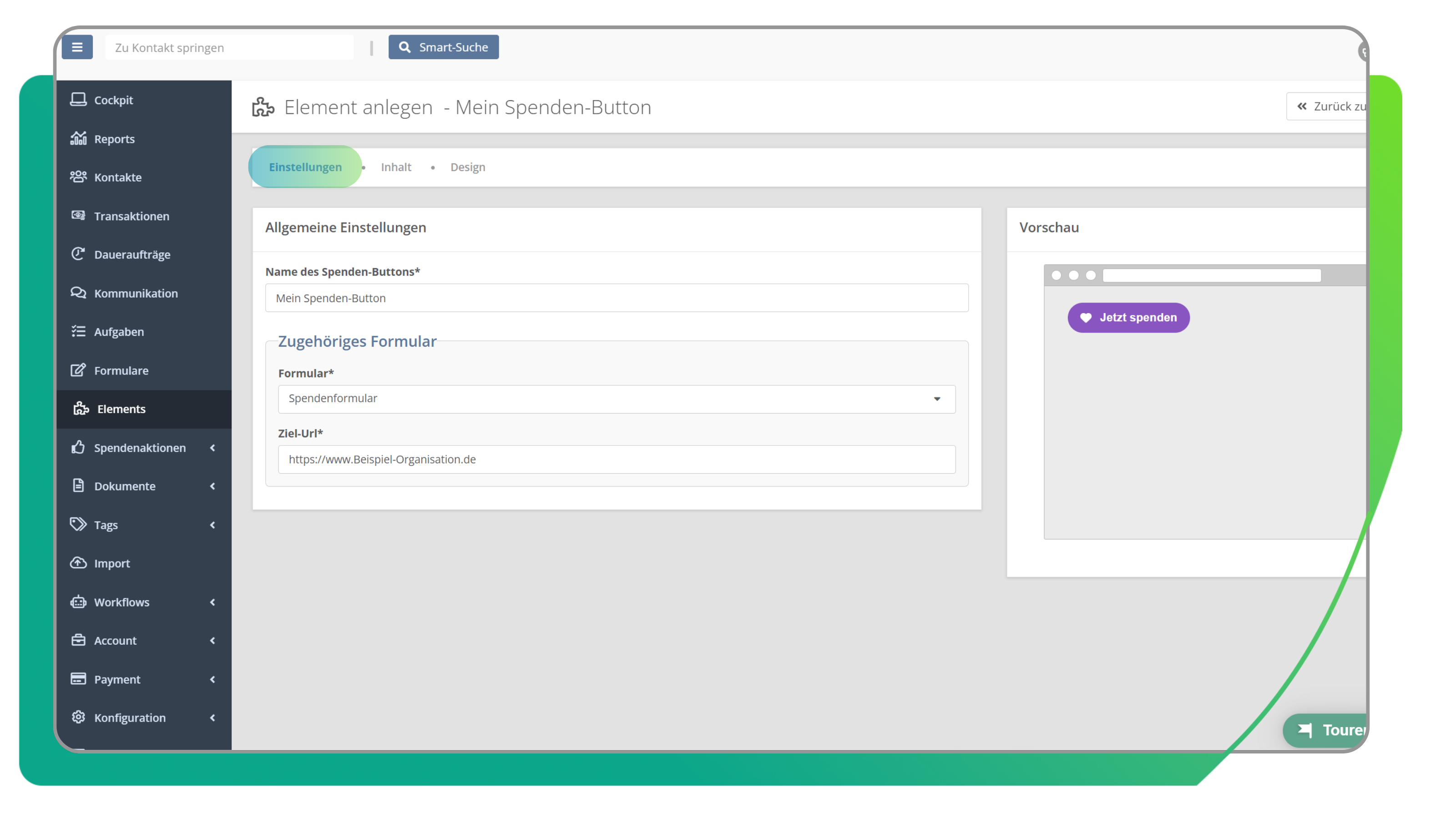
Choose button text and whether your donate button should be displayed with or without an icon.
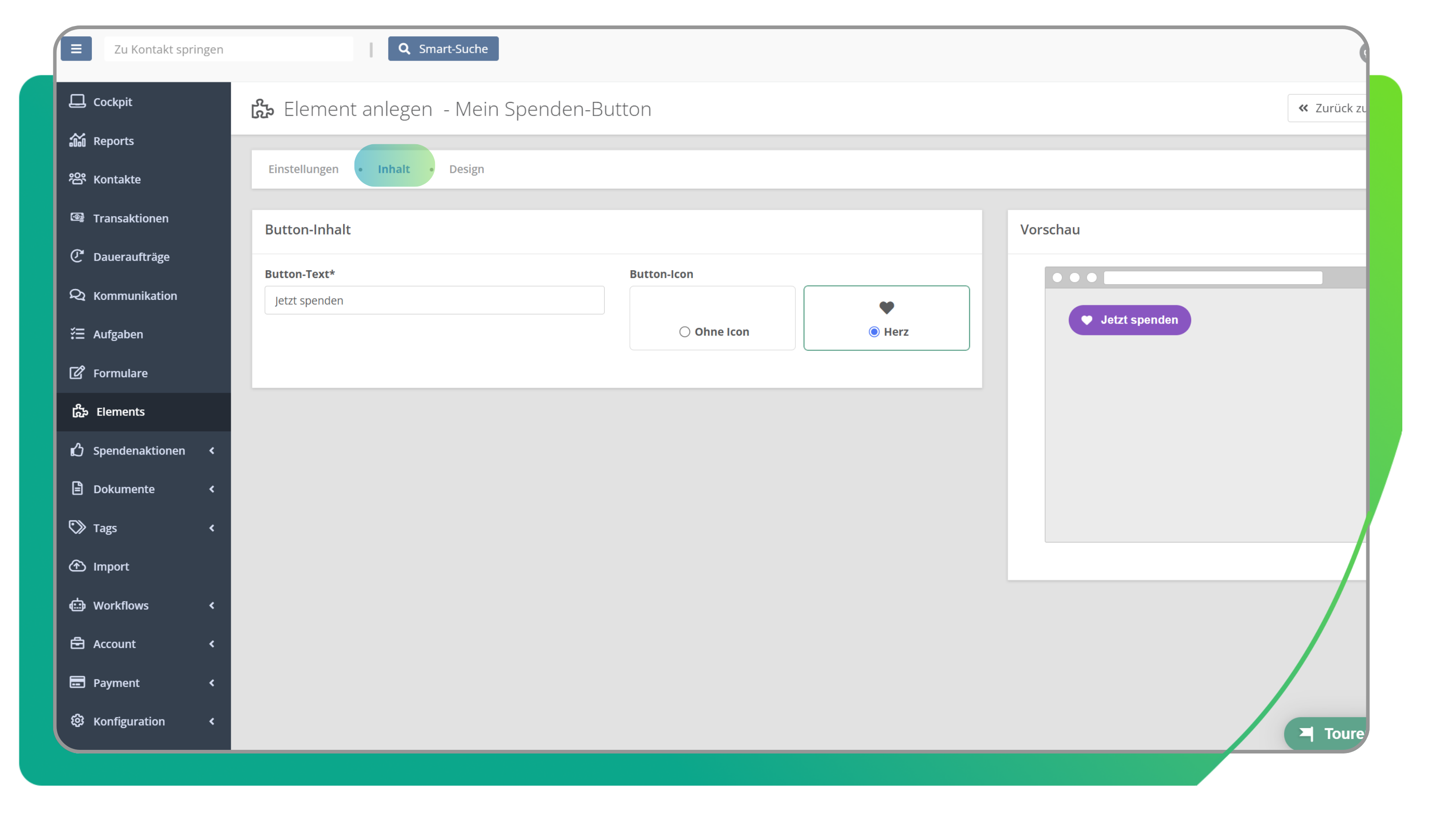
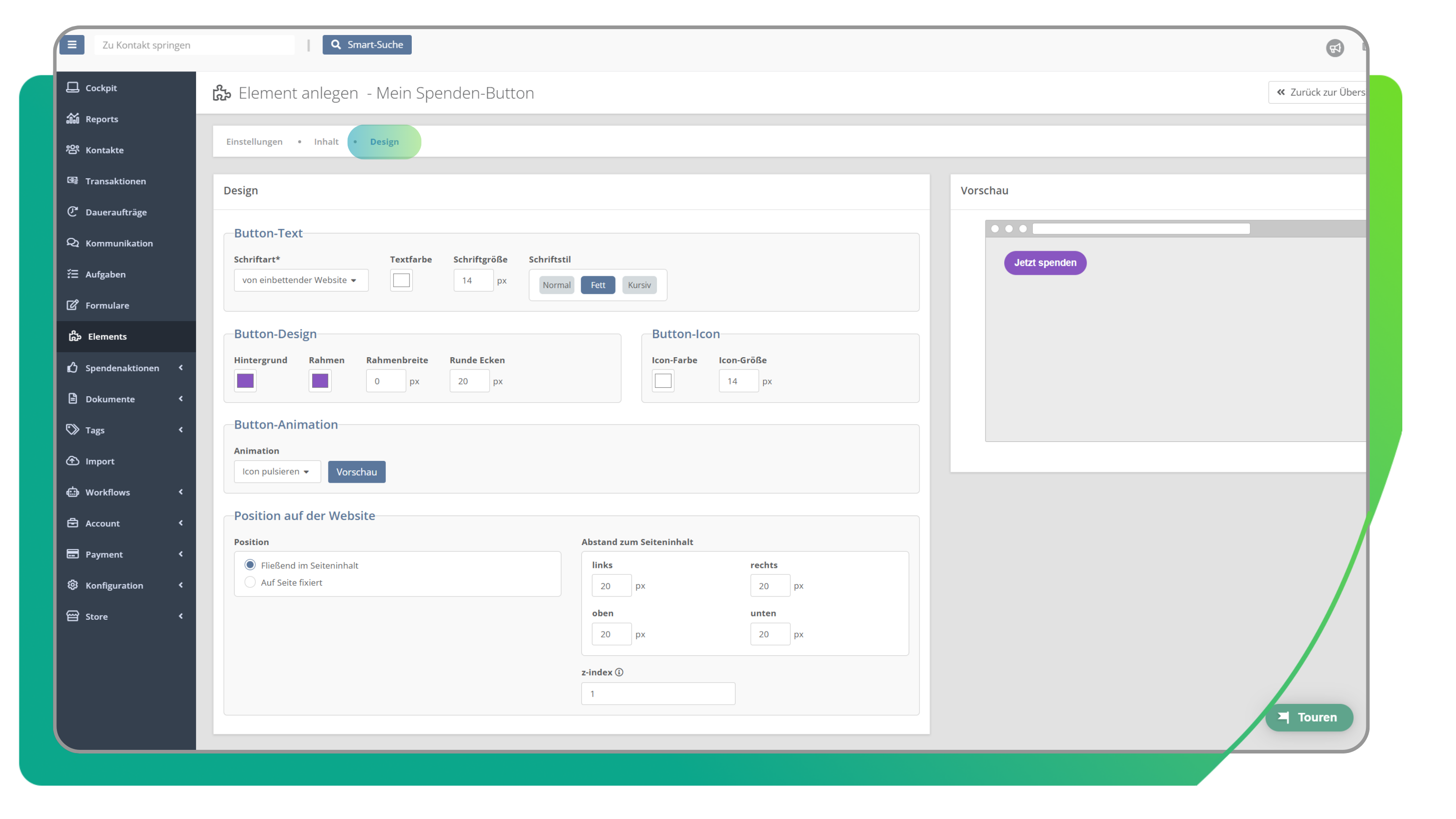
In the “Design” tab, you can customize the button to match your organization’s corporate design. Adjust the text and design of the button as desired, and select animations and the button’s position on the website.
Keep the following in mind:
- Font of the Donate Button: Choose one of the web-safe fonts. These are supported by most systems. Alternatively, you can use the font of the website where your donate button is embedded.
- Animation: The selected animation subtly draws your users’ attention to your donate button. After a certain time, the animation repeats and ends after a few cycles to avoid disrupting the user experience.
QR Code Element
1. Settings
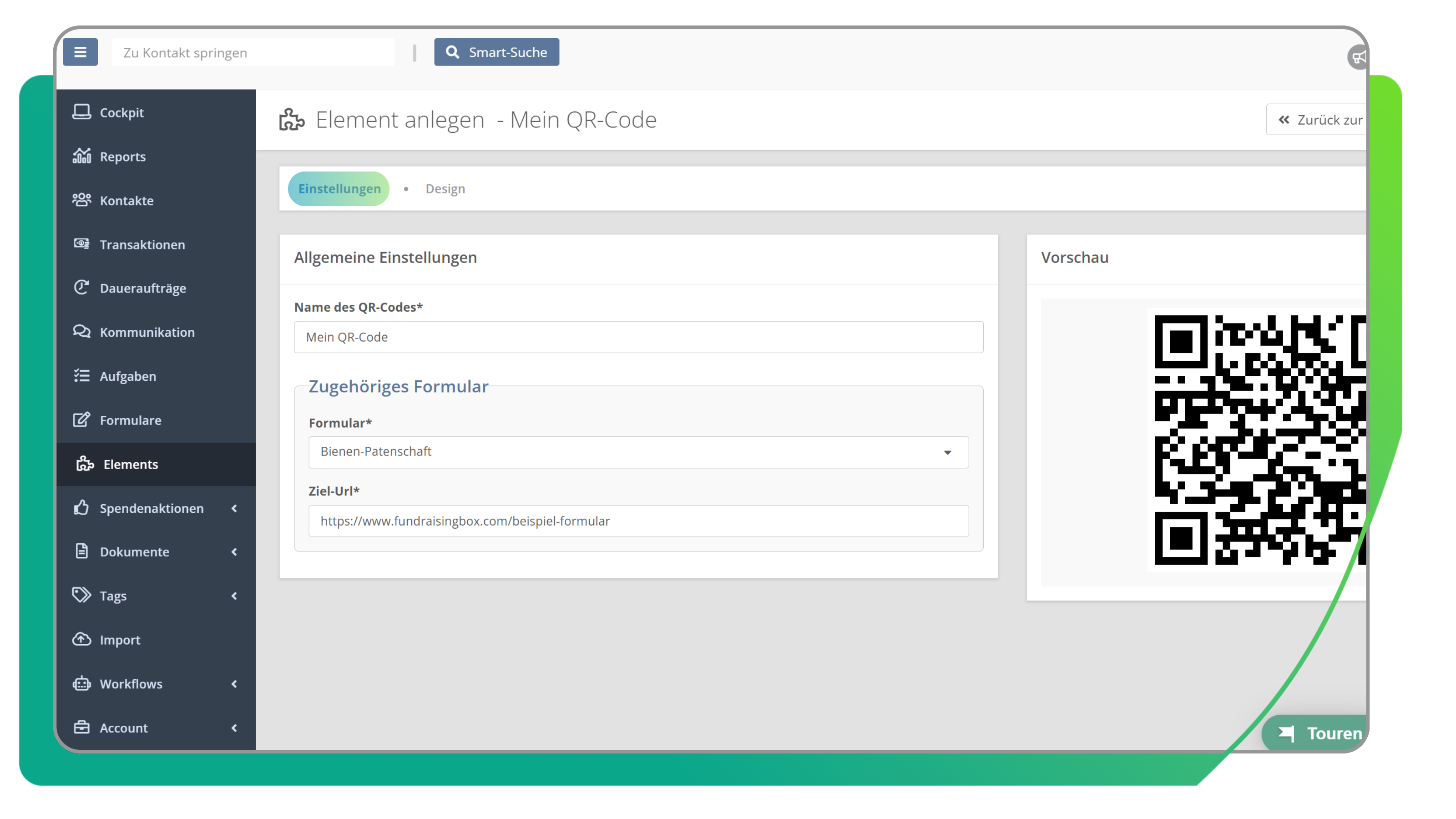
On the first page, you’ll see the general settings for the QR code. As with the donate button, you can enter a name here and select the relevant form and URL.
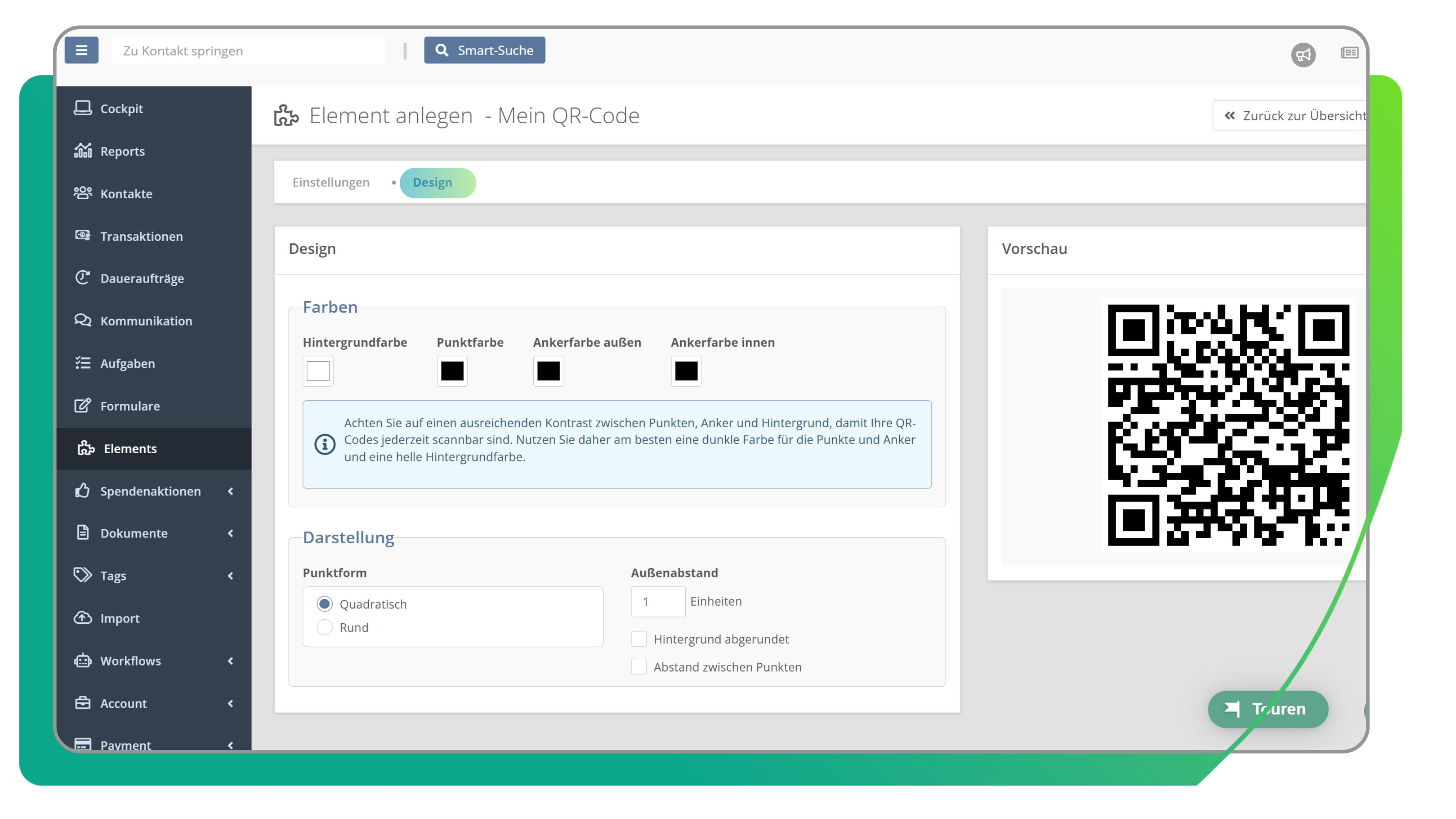
In addition to the content settings, you can also customize the design of your QR code to suit your needs. On the right, you’ll immediately see how the changes impact its appearance.
- With options for background, dot, and anchor colors, you have complete flexibility to design the QR code in a modern style that aligns with your organization’s branding.
- You can also choose between a square or round display and adjust the outer spacing.
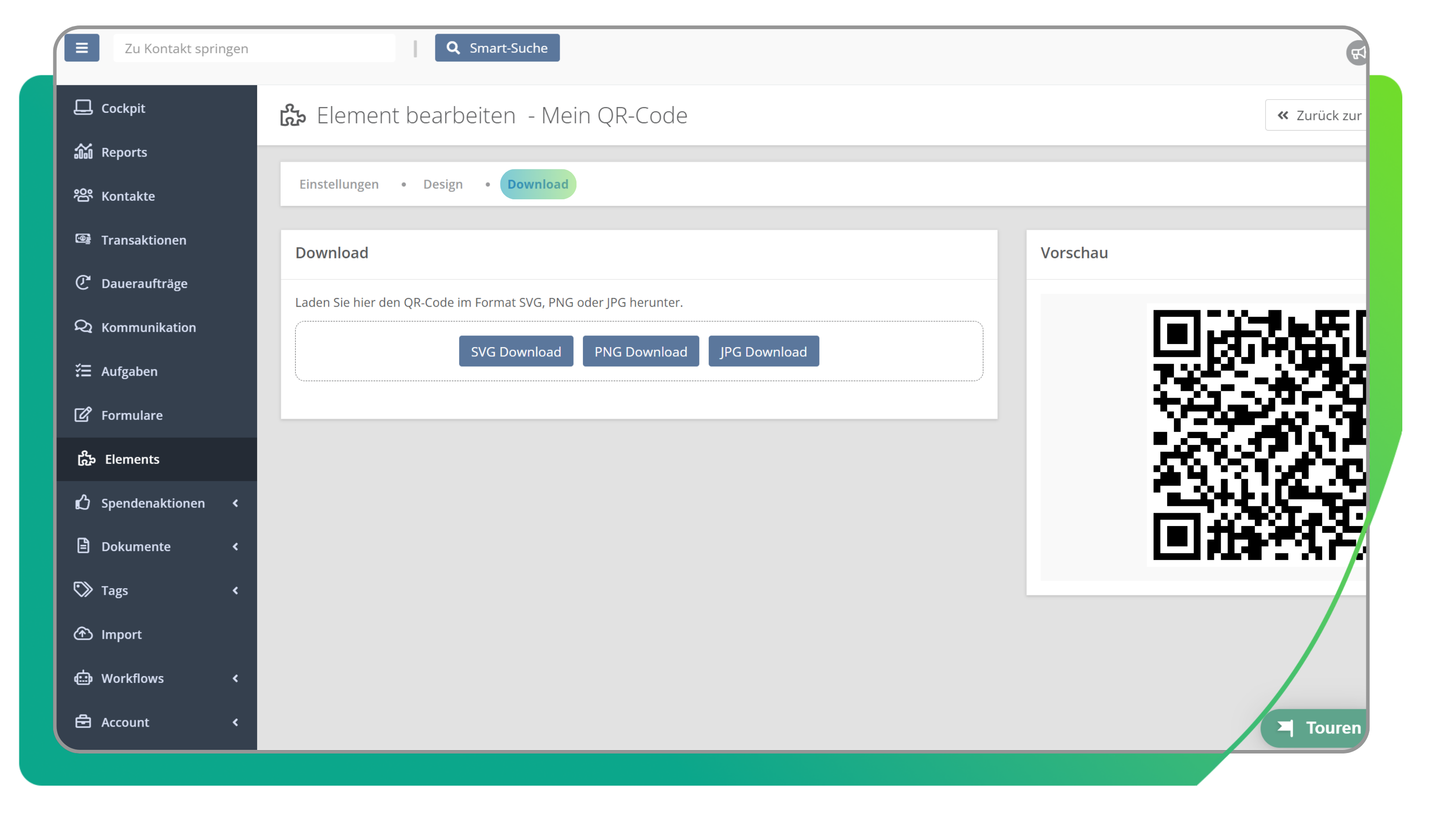
After saving your settings in the top right, you’ll be taken to the download area.
Look forward to more tools in the future to further optimize your donation form. We are currently developing new Elements.